|
On the Booking Details page, you have the option to enter web links and text in different formats as quick links to Websites and GPS Navigation.
The icons will help you identify the type of data that has been entered. Although the icons are different, the Website, +Website and Map/Address fields can all be used in the same way, accepting the same input formats for linking to either a website or Google maps for navigation. However, there are some differences when using the Map/Address field.
|
Website |
 |
Link to a website |
|
+Website |
 |
Link to an additional website |
|
Map/Address |
 |
Link to a Google Maps for GPS navigation |
Below we explain the different formats for entering links and text. Selecting any of the icons will open in a new browser window.
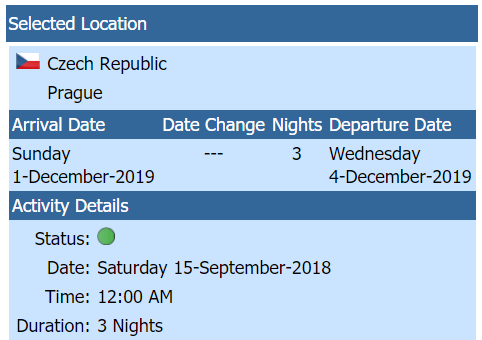
In general, if the text starts with 'www...' or 'http...', it will be treated as a website link. Otherwise, it will be treated as map search text for Google Maps. For 'Website' and '+Website', if non-website text has been entered, the selected Location Country and City will be incorporated into the search text.
Note: The same process works when entering text using Checklists.
For the 'Map/Address' field, if non-website text has been entered, the selected Location Country and City will NOT be incorporated into the search text. (Additional details and examples below)
|
Booking Details Example showing the selected location of the Czech Republic and Prague |
 |

|
|
Website links for the Hotel Roma in Prague |
|
Use the fields 'Website' and '+Website' to link
to a website.
Simply copy and paste the website or enter website addresses prefixed with either
'www....' or 'http...'.
Examples
-
https://www.hotelromaprague.com/en
-
www.hotelromaprague.com/en
|
|
Map/Address text to link to Google Maps Navigation |
In this example, we have entered 'Hotel Prague' in the Map/Address field.
The purpose is to provide navigation to the entered location: Hotel Prague. If you are located in the United States and you select the icon, you more than likely will not get a map with directions to the hotel unless there happens to be a Hotel Prague in your local area. When you are actually in Prague and select the
icon, you will get a map to the hotel. Using your phone to navigate, Google Maps takes your current location and provides a map/directions to the destination.
If you were to enter the exact address of the hotel which would include 'Prague, Czech Republic', then Google Maps would show a map and navigation to where the location is located.
Another example of how to use this field would be when you are driving from Denver Colorado to Tulsa Oklahoma. In the Activity List under Denver, create a 'Car' activity and enter Tulsa as the title. In the
field, enter the address in Tulsa where you plan to go, along with 'Tulsa, OK'. If you leave off 'Tulsa, OK' and only enter the address, Google Maps will use your current location and try to find the address you are looking for, but it would be in Denver. When you arrive in Tulsa, then Google Maps will be able to find the correct location.
| Example Map/Address Text |
Google Map Display |
| McDonalds |
Displays McDonald's locations in your local area. |
| McDonalds, Tulsa, Okl |
Displays McDonald's locations in Tulsa, OK. |
| 4935 S Memorial Dr, Tulsa, OK 74145 |
Displays a map to the specific McDonald's located at the address in Tulsa, Ok. |
|
 |
Google Maps uses your current location to navigate to the entered address. If you only enter the name of a location, navigation will look to find the address at your current location. By entering the country and city name, the navigation will search in that specific location.
Be sure to see our page on Side-by-Side Attractions, making entry quick and easy.
|
|
|
|